
Create an Earn Rule
Loyalty allows you to create a new Earn Rule either by creating it from scratch, or by copying an existing Earn Rule to use as the basis for the new Earn Rule.
Create an Earn Rule
To create an Earn Rule from scratch:
-
Select Rules from the top navigation bar, then select Earn Rules from the side navigation menu. The Earn Rules screen is displayed.
-
In the Display Name field, enter the name of the new Earn Rule.
-
Click Create. The Edit Earn Rule tabbed modal is displayed. For more information on the configuration options available with these different tabs, see Configure Earn Rule Properties.
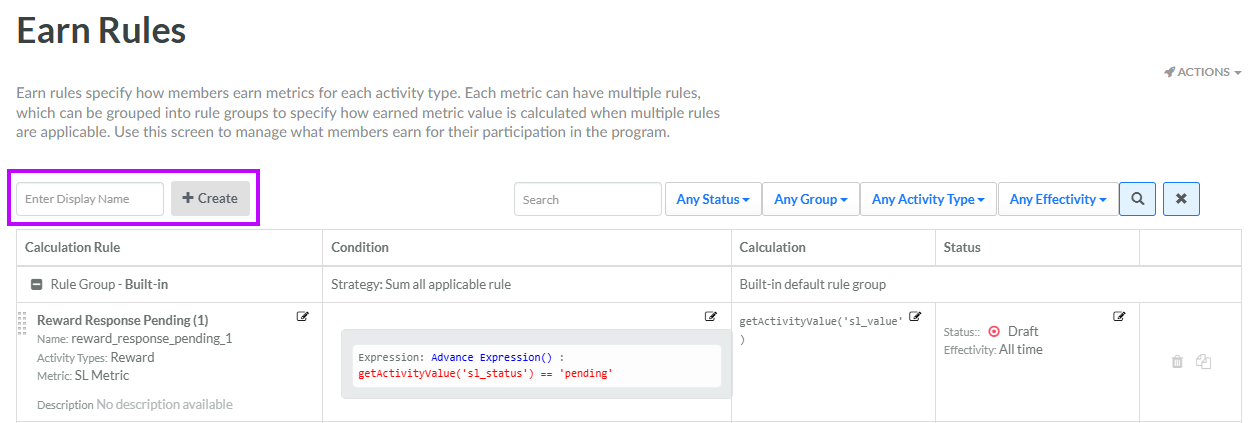
After you create and save the Earn Rule, it is added to the Earn Rules screen. By default, the new Earn Rule is added to the top of the selected Earn Rule Group. See Rearrange Earn Rules for details on how to move an Earn Rule within its Group.
Copy an Earn Rule
To copy an existing Earn Rule:
-
Select Rules from the top navigation bar, then select Earn Rules from the side navigation menu. The Earn Rules screen is displayed.
-
Optionally, search for the desired Earn Rule (see
-
Optionally, expand an Earn Rule Group by clicking the Expand icon next to its name.
-
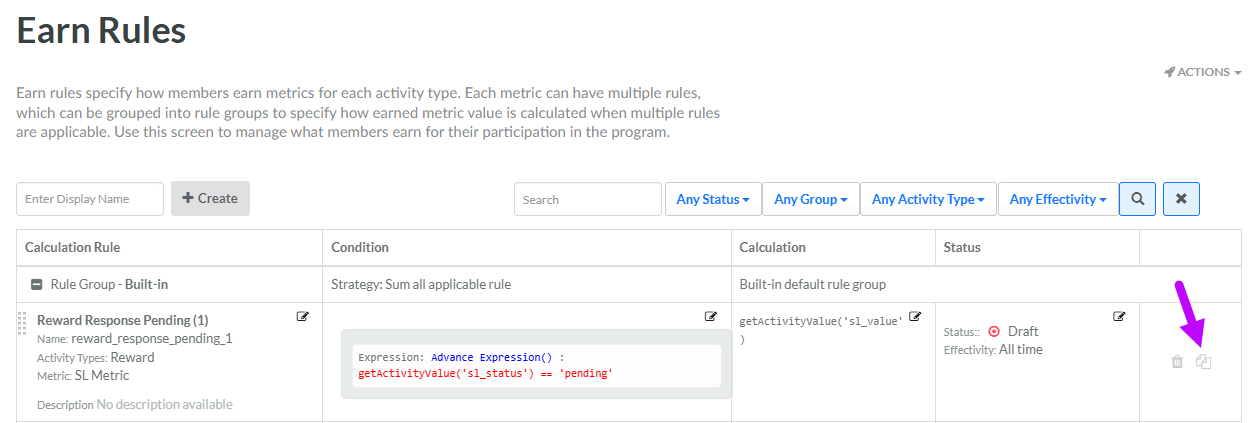
Next to desired Earn Rule, click the Copy icon.
-
The platform creates a copy of the Earn Rule. The default name of the new Earn Rule is the name of the base Earn Rule followed by a counter, such as "(1)."
The newly copied Earn Rule is added to the same Earn Rule Group as the base Earn Rule. By default, the new Earn Rule is added to the top of this Earn Rule Group. See Rearrange Earn Rules for details on how to move an Earn Rule within its Group.
Additional Information
For additional information on how to configure the new Earn Rule, please see the following Help Center articles:
